HP BIOS settings
Over the last years I've see the same mistake repeated over and over again, to some extend it looks like a complete denial, and even though there have been multiple consultants looking at different performance related issues none of them had questioned whether the servers and their BIOS them self have been setup correctly. More often then not what I've seen is that the customer had made no effort to change any BIOS setup, sort of relying on the manufacturer some how knowing what the customer has planned to install on the server.
So hopefully the below will help correct this problem, at least on HP blade servers which seems very popular in the datacenters I've seen the problem
UPDATE (Added graphs):
So what can you expect if you apply the settings below
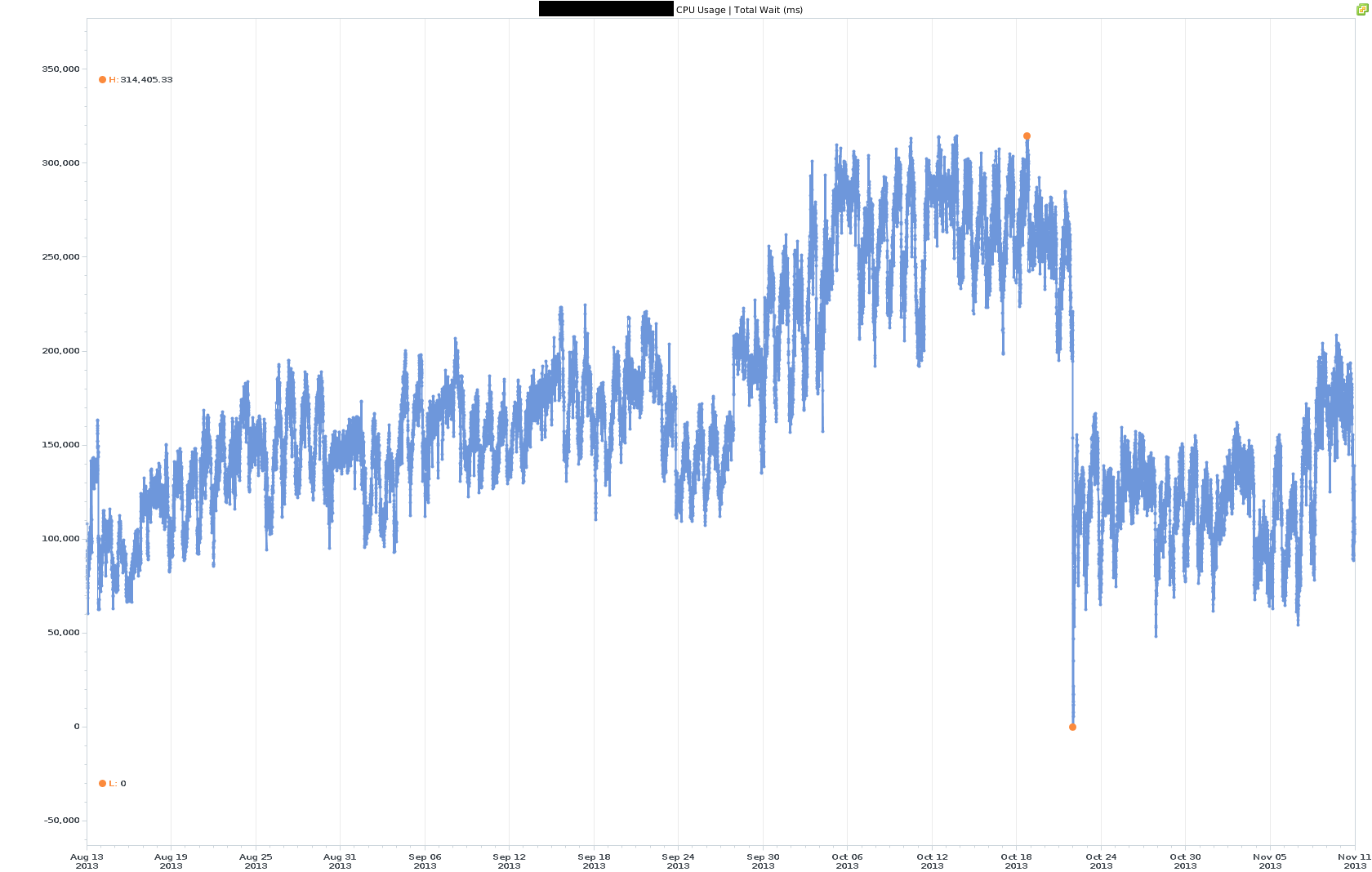
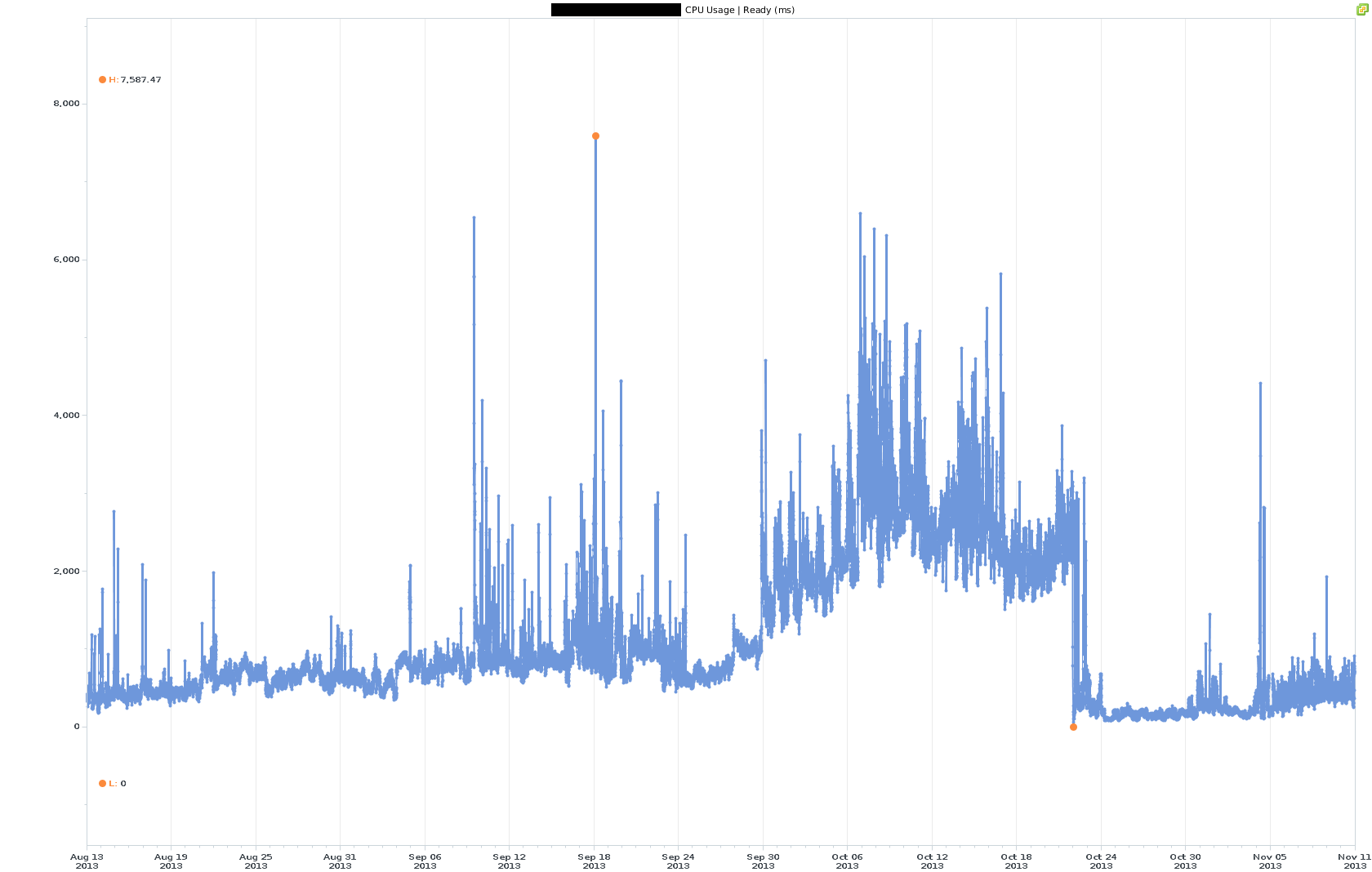
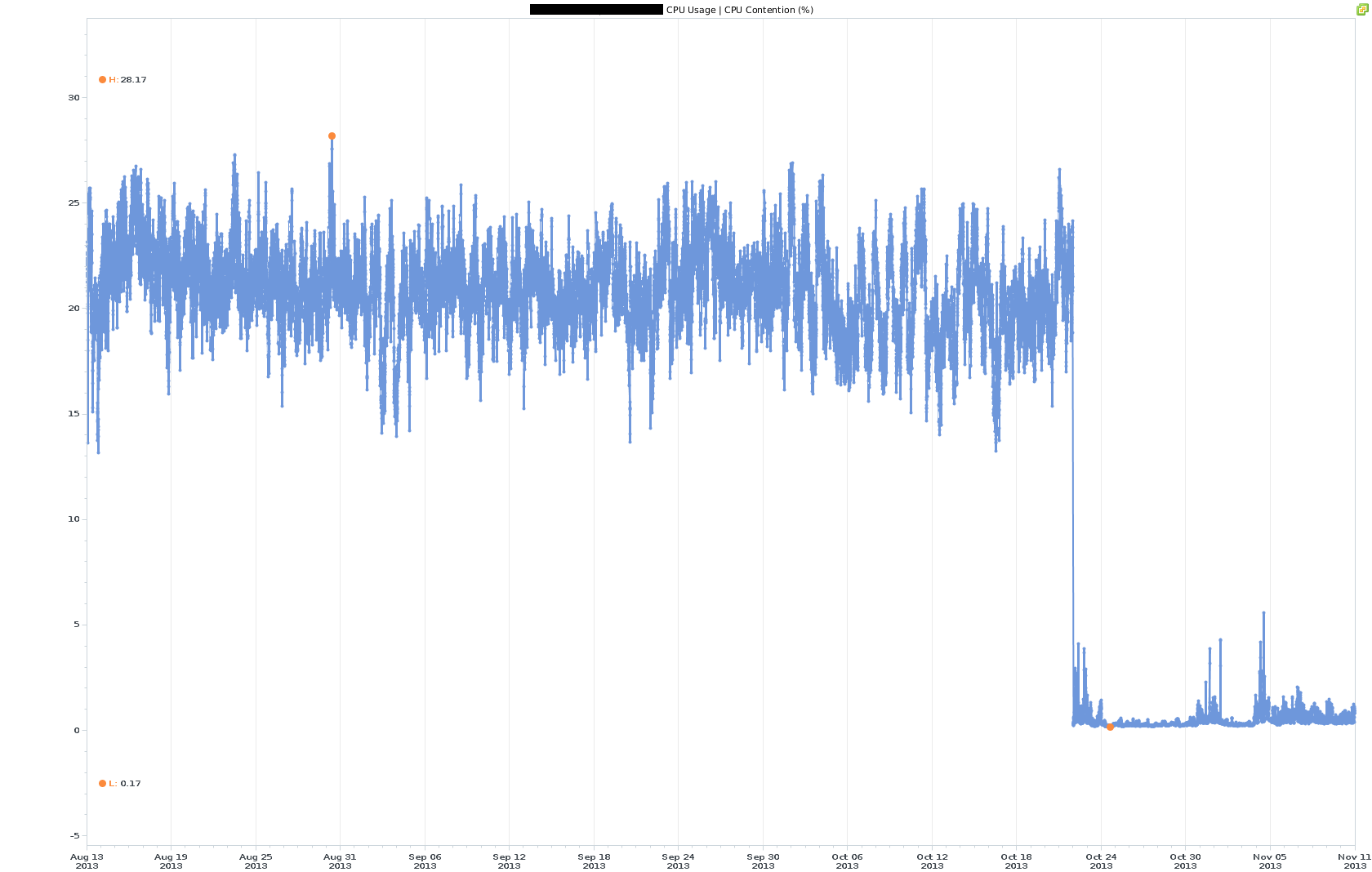
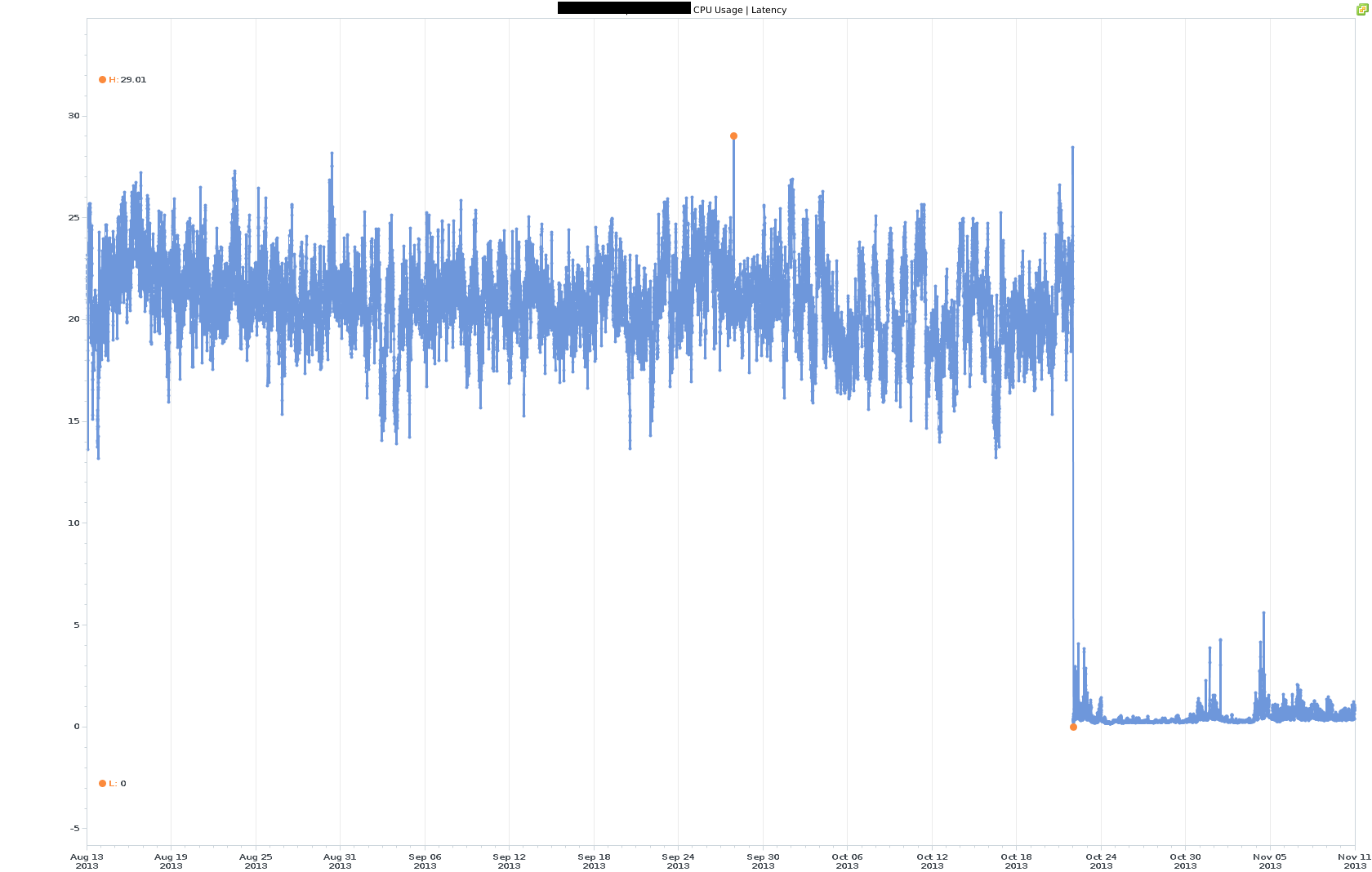
HP BL465c (AMD based)
In BIOS change the following settings as needed
UPDATE: As Dave points out in the comments below, its important to choose the power profile first, as it will change a lot of setting, if you do it last. Thanks Dave for pointing this out.
| Setting | Reason |
| No-Execute page-ProtectionSystem Options -> Processor Options -> No-Execute page-Protection -> Enabled | Enable No-Execute page-Protection in order for EVC to support the CPU.VMware KB: http://kb.vmware.com/kb/1003212 |
| AMD V (AMD Virtualization)System Options -> Processor Options -> AMD V (AMD Virtualization) -> Enabled | Enable AMD V in order for EVC to support the CPU.VMware KB: http://kb.vmware.com/kb/1003212 |
| Maximum PerformancePower Management Options -> HP Power Profile -> Maximum Performance | This setting disables power saving settings the can cause poor performance, fx. High cpu-ready times.VMware KB: http://kb.vmware.com/kb/1018206 |
| OS Control ModePower Management Options -> HP Power Regulator -> OS Control Mode | This setting insures that VMware has control over power management settings.This setting is recommended by VMware and HP, and makes it possible to change the power management setting via the vSphere clientVMware KB: http://kb.vmware.com/kb/1018206 |
| Memory InterleavingPower Management Options -> HP Power Regulator -> Advanced Power Management Options -> Memory Interleaving -> No Interleaving | It is recommended to disable memory interleaving, in order for ESXi to detected the server as NUMAVMware KB: http://kb.vmware.com/kb/1570 |
| Virtual Install DiskAdvanced Options -> Advanced System ROM Options -> Virtual Install Disk – Disabled | This feature is not supported by VMware and will generate errors in the ESXi log.I recommend you disabled this feature. |
| Date & timeData and time -> Set the date and time | This insures correct timestamps |
| ASR StatusServer Availability -> ASR Status -> Disabled | In case of a software error, ASR can reboot the host. But that might not be desired! Think of it this way, would you like a host that fails for any given reason to just enter into production again after a mere reboot? And what stops it from failing that again? Letting it fail buys you time to analyze why it fail and how to fix it, without having to think about unexpected reboots.I recommend you disabled this feature.VMware KB: http://kb.vmware.com/kb/1010842 |
| Thermal ShutdownServer Availability -> Thermal Shutdown -> Enabled | I case the host is overheating it will shut down – Hopefully not damaging the hardware it self.I recommend you enabled this feature. |
| Wake-on LanServer Availability -> Wake-on Lan -> Enabled | Want to use DPM, this feature enables you to wake the host up from shut down or standby state. |
HP BL460c (Intel based)
| Setting | Reason |
| Maximum PerformancePower Management Options -> HP Power Profile -> Maximum Performance | This setting disables power saving settings the can cause poor performance, fx. High cpu-ready times.VMware KB: http://kb.vmware.com/kb/1018206 |
| OS Control ModePower Management Options -> HP Power Regulator -> OS Control Mode | This setting insures that VMware has control over power management settings.This setting is recommended by VMware and HP, and makes it possible to change the power management setting via the vSphere clientVMware KB: http://kb.vmware.com/kb/1018206 |
| Virtual Install DiskAdvanced Options -> Advanced System ROM Options -> Virtual Install Disk – Disabled | This feature is not supported by VMware and will generate errors in the ESXi log.I recommend you disabled this feature. |
| Date & timeData and time -> Set the date and time | This insures correct timestamps |
| ASR StatusServer Availability -> ASR Status -> Disabled | In case of a software error, ASR can reboot the host. But that might not be desired! Think of it this way, would you like a host that fails for any given reason to just enter into production again after a mere reboot? And what stops it from failing that again? Letting it fail buys you time to analyze why it fail and how to fix it, without having to think about unexpected reboots.I recommend you disabled this feature.VMware KB: http://kb.vmware.com/kb/1010842 |
| Thermal ShutdownServer Availability -> Thermal Shutdown -> Enabled | I case the host is overheating it will shut down – Hopefully not damaging the hardware it self.I recommend you enabled this feature. |
| Wake-on LanServer Availability -> Wake-on Lan -> Enabled | Want to use DPM, this feature enables you to wake the host up from shut down or standby state. |
| SR-IOVAdvanced Options -> SR-IOV -> Enabled | Enables SR-IOV support in ESXi |